Appearance
Updates, repair & removal
After an update
Open Beamline and check the game’s status. After a game update, use Refresh Games if needed. If it remains Ready and works, nothing else is required.
Close the game before running setup maintenance.
Update or Repair
- Update refreshes an outdated setup or one affected by changed game programs.
- Repair fixes a setup Beamline has marked as needing attention.
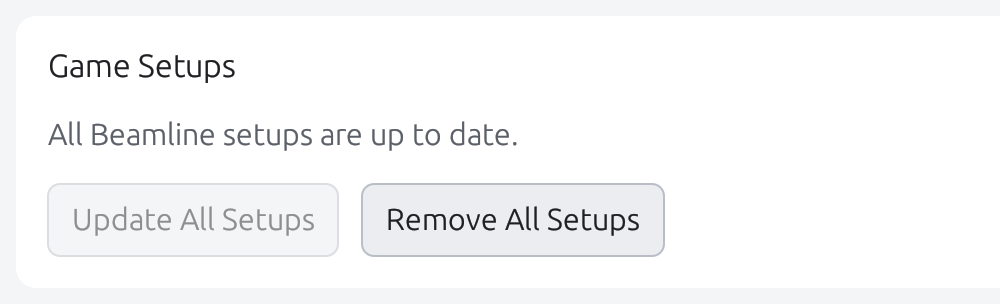
Settings → Update All Setups updates eligible setups together. Review any games still needing attention afterward. Update Beamline Jump from its own Library card.
Remove a setup
Close the game, then choose Library → Game Setup → Remove for that game.
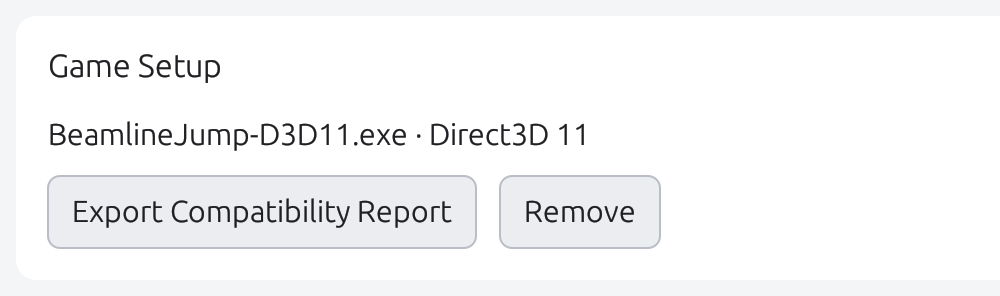
Beamline removes its integration and restores configuration or executable changes where restoration is available. If a game update replaced a file, Beamline keeps the newer file instead of restoring an old backup.
For custom games, Remove from Library removes the setup and Library entry while keeping the game files.
Confirmations
Replace Existing Files? and Delete Existing Files? list files that may belong to another graphics tool. Replacing or deleting them may stop that tool from working.
Remove Without Restoring the Original File? means restoration data is unavailable. Remove Anyway keeps the affected file and removes the setup; the game may then need Steam’s Verify integrity of game files.
Failure
An operation can partially complete, and bulk operations can have different results per game. Read each result and keep Beamline installed while resolving the affected setups.
Before uninstalling Beamline
Remove setups first, using Settings → Remove All Setups for bulk removal. Resolve removal failures before uninstalling: uninstalling the app leaves game integrations behind.