

Appearance
Getting started
Beamline gives games the character of a CRT display, an LCD panel, or VHS tape. Set it up for a game, launch the game as usual, and choose your look while you play.
Before you start
Install and launch Beamline through Steam. The Steam package includes the Linux components; the app runs directly on Windows and through Proton on Linux and SteamOS. If you use a portable package, extract the whole package and keep its files together.
Beamline Jump
Jump is the built-in minigame for trying Beamline's setup and in-game controls.
Open Help and choose Play Beamline Jump. If Jump is already ready, this launches it immediately. The first time, choose Set Up on its game page, then choose Play Beamline Jump once it shows Ready.
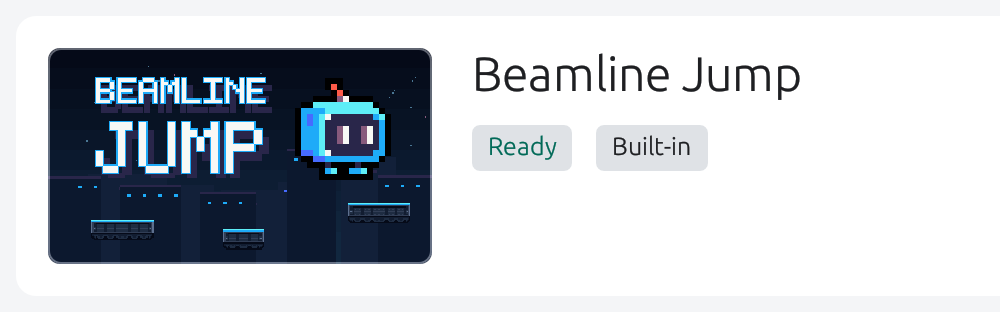
Hold Space or the left mouse button, then release to jump. Press Home to open Beamline's overlay, or use your chosen overlay shortcut.
Jump includes an introduction to the controls. You can return to it from Help.
Set up a game
Before setting up an online game, read the anti-cheat warning.
Close the game first. In Beamline, open Library and select an installed game. For an unlisted Windows game, choose Add Game and select its .exe. Choose Set Up, follow any prompts, and wait for Ready.
Set Up installs Beamline's integration for that game and may adjust its configuration or executable, depending on the graphics path.
Review any request to replace existing files, especially if you use other graphics tools.
Launch and choose a look
After setup, you can close the Beamline app. Launch the game through Steam or your usual shortcut. Keep using Steam's normal launch choices, including its Proton choice on Linux and SteamOS.
Once the game is visible:
- Press Home to open the overlay.
- Set Enabled to On.
- Change Look to CRT, LCD, or VHS, then try the available options.
Use Up/Down to select a row, Left/Right to change a value, and Enter to activate an action. You can also click the controls.
Press Home again or Escape to close the overlay. Set Enabled to Off to turn the effects off.
For a different shortcut, use Settings → Overlay shortcut; it takes effect the next time the game starts.
The overlay guide covers each picture option. If effects slow the game down, try the performance adjustments.
Optional: fine-tune the pixel grid
For pixel-art games using CRT or LCD, the pixel-grid controls may help match the effect to the game's pixels.
Remove a game's setup
Close the game and choose Library → Game Setup → Remove. See Updates, repair & removal for removal warnings and the steps to take before uninstalling Beamline.
If something isn't working, start with Troubleshooting & support.