

Appearance
Troubleshooting & support
A game is missing or cannot be set up
In Library, clear the search, select All, and use Refresh Games. If prompted, use Choose Steam Folder… to select your Steam installation folder.
For an unlisted Windows game, choose Add Game and select its .exe. If setup is refused, check the message and Compatibility.
The overlay does not open or effects do not appear
Check that the game shows Ready, then launch it normally. Use the shortcut shown under Settings → Overlay shortcut—Home by default. Restart the game after changing the shortcut.
If the overlay opens, check that Enabled is On. If it still has no effect, see Compatibility. For a setup marked as needing attention, use the maintenance guide.
The picture looks wrong or Detect Grid fails
Set Enabled to Off to compare with the original picture. If Beamline causes the difference, turn it back on and change the last option you adjusted or try another look.
A failed Detect keeps your previous calibration. Retry during normal gameplay, with the entire game window visible on one screen. Menus, loading screens and some gameplay scenes may not provide a reliable grid.
If the game’s scaling or output size changed, check the saved-calibration rules.
Settings Error appears or changes do not persist
Settings Error means your latest changes may not have been saved. Note the message and option you changed. If it keeps happening, include those details when contacting support.
A game stops working normally after setup
Close the game, remove its Beamline setup, then try launching it again. Follow any restoration warning before retrying. If other graphics tools are installed, check possible conflicts.
Update, Repair, or Remove cannot finish
Check the partial-failure guidance before uninstalling or discarding Beamline.
If Beamline reports an incomplete package, restore the complete package and reopen it. For a missing or blocked component, check the installation and your security software’s protection history. Restart Beamline after resolving the issue; do not disable protection or add exclusions to bypass a detection.
Contact 500 MHz
hello500mhz@outlook.com, also available through Help → Contact 500 MHz or About.
For troubleshooting, include:
- Beamline version from About, game and operating system. On Linux/SteamOS, say whether the game is native or runs through Proton.
- Expected and actual behavior, steps to reproduce, what you tried, and the exact message shown.
Leave out credentials, saves, private filesystem details and unrelated logs.
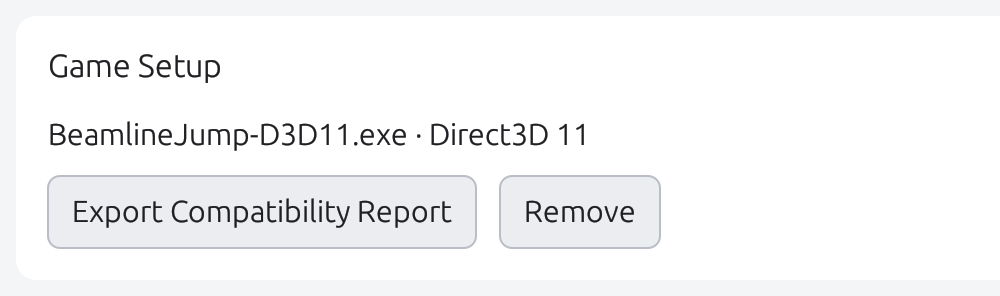
For a Compatibility Report, select the game in Library → Game Setup → Export Compatibility Report. The button appears once Beamline identifies the game’s executable, even before successful setup. If export is unavailable or fails, send the symptom and message instead.
Compatibility Reports stay on your computer until you choose to share them. Inspect the report before attaching it to your email.